
Citron keys are essential files required to run Nintendo Switch games properly on the Citron emulator. In this guide, we cover everything you need to know about Citron prod keys, title keys, and the latest Citron prod keys and firmware version 22.5.0.
These system and game-level keys allow the emulator to decrypt protected Switch data, verify game files, and launch titles without common errors such as missing keys or failed boots.
Using updated Citron prod keys and matching firmware is important for better compatibility, improved stability, and smoother gameplay on both Android and PC. Whether you’re setting up Citron for the first time or updating an existing installation, having the correct keys and firmware ensures your emulator functions closer to real Nintendo Switch hardware.
Below, you’ll find clear setup guidance, compatibility details, and download information to help you install Citron keys and firmware correctly and get your games running without issues.
- 1 What is Citron Emulator?
- 2 Citron Prod Keys v22.5.0 Download [Latest Version]
- 3 What are Citron title keys?
- 4 Citron Firmware v22.5.0 Download Zip File
- 5 How to Install Prod Keys in Citron Emulator
- 6 Citron prod keys and firmware on Android
- 7 How to install firmware in Citron Emulator on Windows
- 8 Version compatibility: V22.5.0, V21.2.0, and older firmware
- 9 Common Citron keys and firmware errors
- 10 Recommended system requirements
- 11 Frequently Asked Questions – Citron Emulator Prod Keys and Firmware
- 12 Conclusion
What is Citron Emulator?
Citron is a Nintendo Switch emulator used on PC and Android devices. It lets users run supported Nintendo Switch game backups on hardware other than the original console.
The emulator app is only one part of the setup. Citron also needs the right system files before it can read encrypted game data. That is where prod.keys, title.keys, and firmware come in.
If you install Citron and add games without these files, your games may not appear in the library. Some games may appear but fail during launch. Others may boot and then crash when an update or DLC is loaded.
Understanding Citron Production Keys & Title Keys
The Citron emulator depends on two essential components to run Nintendo Switch games properly: Citron Production Keys (prod.keys) and Title Keys. The production keys handle system-level decryption, allowing the emulator to read and authenticate Nintendo Switch system data. The title keys, on the other hand, are used to decrypt individual game files and identify specific game titles.
Both Citron prod keys and title keys are required for games to load and run correctly in the Citron emulator. Without these keys, Citron cannot decrypt .XCI or.NSP files, which often result in errors or games failing to start. Installing the correct keys ensures accurate game recognition, better compatibility, and a smoother emulation experience.
Citron Prod Keys v22.5.0 Download [Latest Version]
Citron prod keys are production keys used to decrypt Nintendo Switch system and game data. The file is usually named:
prod.keys
These keys allow Citron to read encrypted Switch content such as XCI files, NSP files, firmware files, game updates, and some DLC packages.
Prod keys are linked to the Switch firmware version. That is why users look for version-specific terms such as Citron Prod Keys V22.5.0. If your game or firmware setup needs newer system keys, an old prod.keys file may not work correctly.
Common errors caused by missing or wrong prod keys include:
- Missing keys warning
- Unable to decrypt game file
- Game not showing in the library
- Black screen after launch
- NSP or XCI file not loading
- Update package failing to install
- Firmware install error
A clean prod.keys setup is usually the first thing to check when Citron refuses to load Switch games.
Download the latest Citron keys and firmware to ensure smooth and stable gameplay on PC and Android. These updated files help the Citron Emulator properly decrypt Nintendo Switch system data, improving game compatibility and reducing common errors like black screens or failed launches.
We regularly update this page whenever a new product.keys versions are released, so you can always access the most up-to-date files.
To stay informed and never miss an update, bookmark productkeys.net and check back often. The download link for the latest version is available below.
What are Citron title keys?
Citron title keys are game-level keys. The file is usually named:
title.keys
Title keys are used for specific games, updates, digital content, and DLC. Prod keys handle wider system-level decryption. Title keys handle content tied to individual titles.
Some users can boot a base game with prod.keys, then face errors when installing updates or DLC. In that case, title.keys may be missing, outdated, or mismatched.
Citron title keys are especially important when you use:
- Game updates
- DLC files
- eShop content backups
- NSP files from your own console
- Multiple game versions
For the best result, keep prod.keys and title.keys from the same console and firmware range.

| Details | Information |
|---|---|
| Emulator Name | Citron |
| Key Type | Citron Keys (Prod Keys & Title Keys) |
| Version | Game booting, updates, DLC loading, and emulator stability |
| Supported Platform | Game booting, updates, DLC loading, and emulator stability |
| File Format | Compressed ZIP Folder (.zip) |
| Prod Keys File Size | Game booting, updates, DLC loading, and emulator stability |
| Compatibility | Game booting, updates, DLC loading, and emulator stability |
| Purpose | Decrypts Nintendo Switch system files and game data |
| Required For | Game booting, updates, DLC loading, and emulator stability |
| Common Errors Fixed | Black screen, encrypted content errors, game not starting |
Note: If the Citron prod keys version 22.5.0, the prod key is not working in your case, or Emulator, then use the Citron Keys version 21.2.0 prod key. (Version 22.1.0 is working for me)
|
Version |
Link |
|---|---|
|
LATEST KEYS v22.5.0 |
|
|
keys v22.1.0 |
|
|
keys v22.0.0 |
|
|
Keys v21.2.0 |
|
|
Keys v21.1.0 |
|
|
Keys v21.0.1 |
|
|
Keys v21.0.0 |
|
|
Keys v20.5.0 |
|
|
Keys v20.4.0 |
|
|
Keys v20.3.0 |
|
|
Keys v20.2.0 |
|
|
Keys v20.0.1 |
|
|
Keys v20.0.0 |
|
|
Keys v19.0.1 |
|
|
Keys v19.0.0 |
|
|
Keys v18.1.0 |
|
|
Keys v18.0.1 |
|
|
Keys v18.0.0 |
|
|
Keys v17.0.1 |
|
|
Keys v17.0.0 |
|
|
Keys v16.1.0 |
|
|
Keys v16.0.3 |
|
|
Keys v16.0.2 |
|
|
Keys v16.0.1 |
|
|
Keys v16.0.0 |
Citron Prod Keys V22.5.0 should match the firmware range you are using. Mixing old keys with newer firmware can cause boot errors. Mixing newer keys with a very old emulator build can also create problems.
Version matching does not guarantee every game will run. Device power, GPU driver support, emulator build, game file condition, and settings also affect performance.
Citron Firmware v22.5.0 Download Zip File
Citron firmware is the Nintendo Switch system firmware used by the emulator. It gives Citron access to system files that many games expect during boot.
The firmware is usually installed from a ZIP package. Install prod.keys and title.keys before installing firmware. Citron may fail to read the firmware ZIP if the keys are missing or wrong.

| Details | Information |
|---|---|
| Firmware Name | Sudachi Nintendo Switch Firmware |
| Firmware Version | v22.0.1 (Latest Release) |
| Supported Emulator | Android & Windows, Linux |
| File Type | Compressed ZIP Folder (.zip) |
| Firmware ZIP Size | 325.0 MB |
| Purpose | Provides Nintendo Switch system files required for game compatibility |
| Required For | Proper game booting, system stability, and emulator accuracy |
| Recommended With | Sudachi Encryption Keys v22.0.0 |
| Fixes Common Issues | Firmware missing errors, boot failures, compatibility problems |
|
Version |
Links |
|---|---|
|
v22.5.0 |
|
|
v22.1.0 |
|
|
v22.0.0 |
|
|
v21.2.0 |
|
|
v21.1.0 |
|
|
v21.0.1 |
|
|
v21.0.0 |
|
|
v20.5.0 |
|
|
v20.4.0 |
|
|
v20.3.0 |
|
|
v20.2.0 |
|
|
V20.1.5 |
|
|
v20.1.1 |
|
|
v20.1.0 |
|
|
v20.0.1 |
|
|
v20.0.0 |
|
|
v19.0.1 |
|
|
v19.0.0 |
|
|
v18.1.0 |
|
|
v18.0.1 |
|
|
v18.0.0 |
|
|
v17.0.1 |
|
|
v17.0.0 |
|
|
v16.1.0 |
|
|
v16.0.3 |
|
|
v16.0.2 |
|
|
v16.0.1 |
|
|
v16.0.0 |
|
|
v15.0.1 |
|
|
v15.0.0 |
Check out this: Ryujinx Prod keys and Firmware v22.5.0 Download (Ryujinx keys)
Note: Before installing the firmware, make sure you’ve already installed the required Citron prod.keys and title.keys, which must be extracted from a real Nintendo Switch. These keys are essential for the emulator to work properly. If the latest Citron firmware doesn’t function as expected, try downgrading to firmware version 20.5.0, as this often fixes common problems like firmware installation errors, failed downloads, or games not launching. If you’re still facing issues, the firmware isn’t working, or a download link is broken, feel free to leave a comment. We’re happy to help you troubleshoot and get everything running smoothly.
How to Install Prod Keys in Citron Emulator
Installing Switch prod keys in the Citron emulator is a simple process, but it must be done correctly for games to load without errors. Follow the steps below based on your operating system.
Manual Process
Step 1: Open Citron Emulator
Launch the Citron Emulator on your Windows PC.
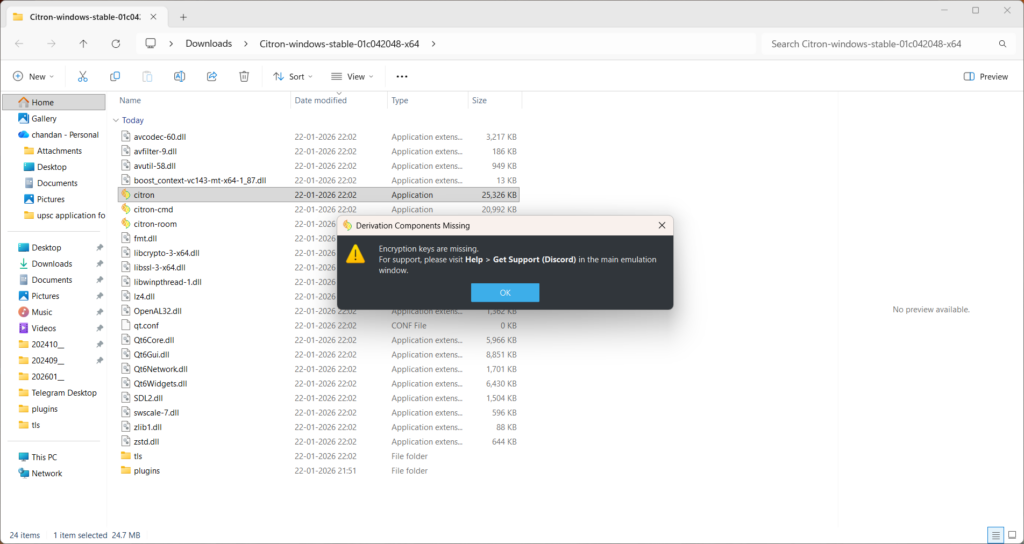
If the emulator shows a warning saying “Encryption keys are missing”, click OK. This means Citron is installed correctly, but the key file has not been added yet.
Step 2: Open the Citron folder
From the top menu, click: File > Open Citron Folder. This will open the main Citron data folder in Windows File Explorer.
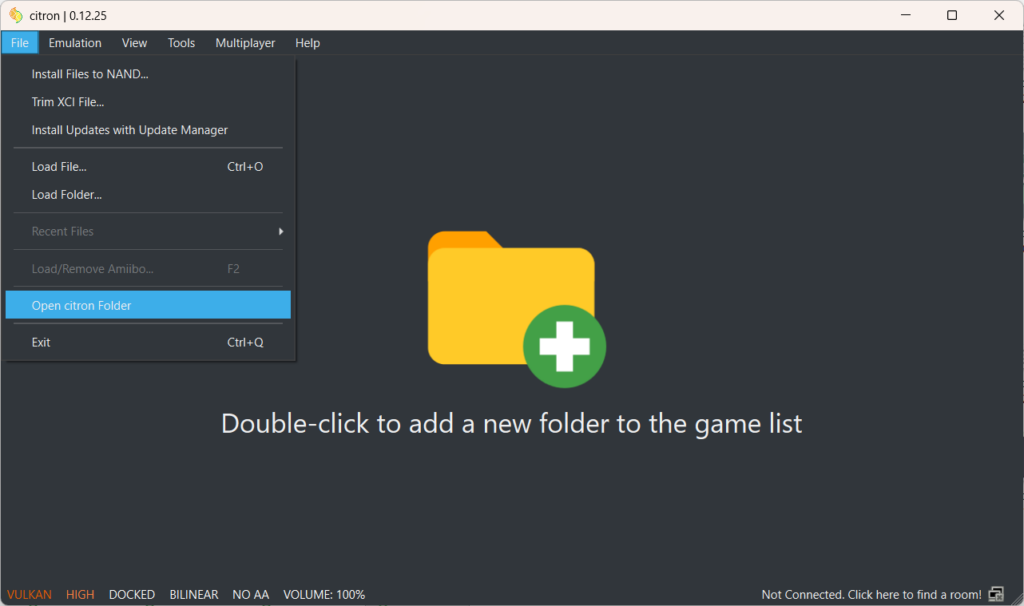
On Windows, the folder is usually located at:
C:\Users\YourUsername\AppData\Roaming\citronThe exact path may be different on your PC, so using Open Citron Folder from the emulator is the safest method.
Step 3: Open the keys folder
Inside the Citron folder, look for a folder named:
keysOpen this folder.
If the keys folder is missing, create a new folder and name it exactly:
keys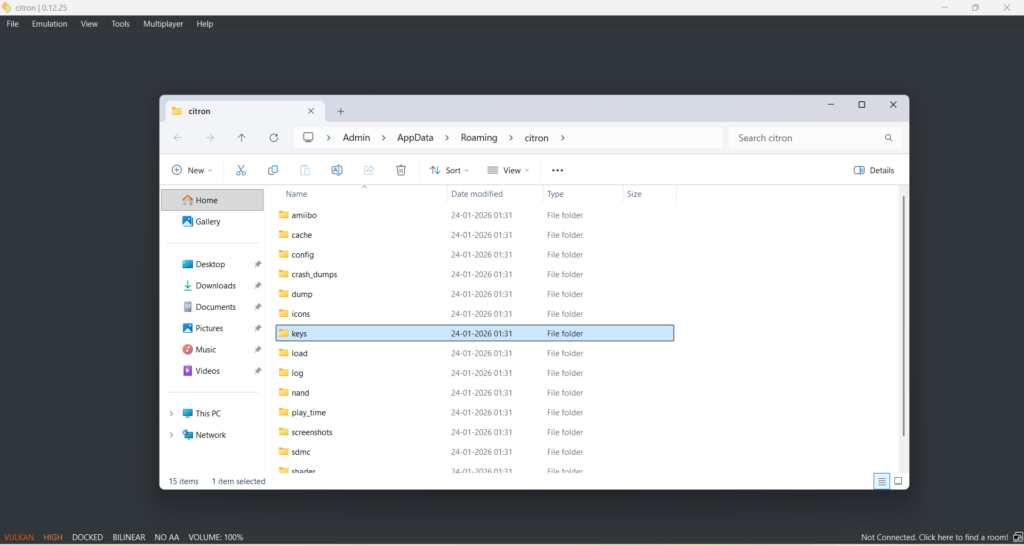
Step 4: Add the prod.keys file
Copy your legally dumped prod.keys file into the keys folder.
The file name should be exactly:
prod.keysMake sure Windows has not renamed it to:
prod.keys.txtIf the file name is incorrect, Citron may still display the ‘missing keys’ error.
Step 5: Install decryption keys from the Tools menu
Go back to the Citron Emulator window. From the top menu, click: Tools > Install Decryption Keys. A file selection window will open.
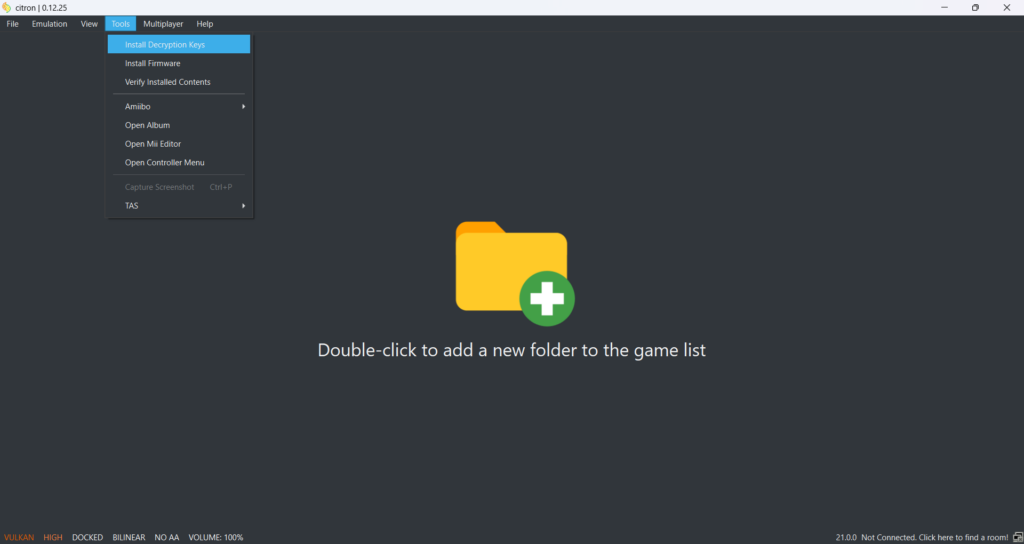
Browse to the folder where your prod.keys file is saved, select the file, and click Open.
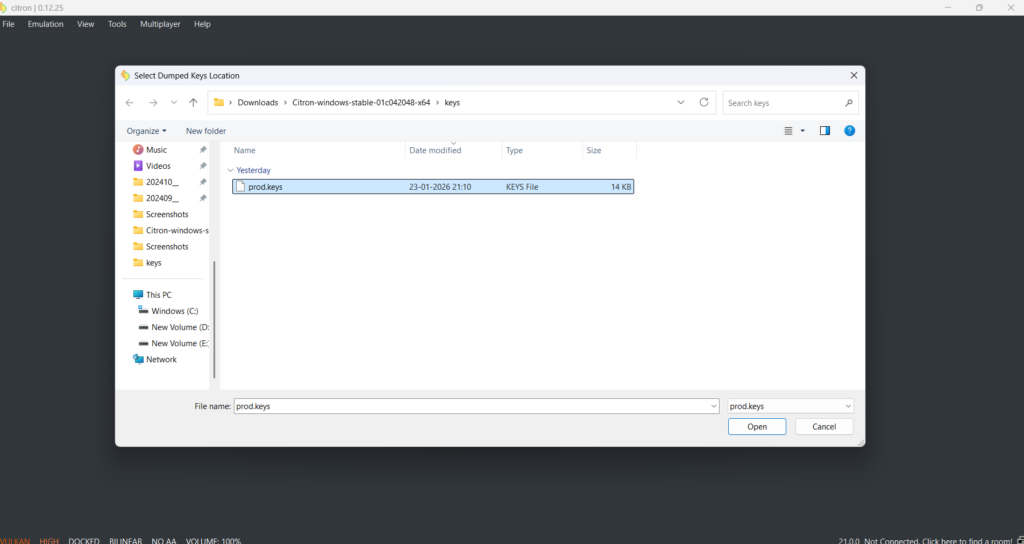
Step 6: Restart Citron Emulator
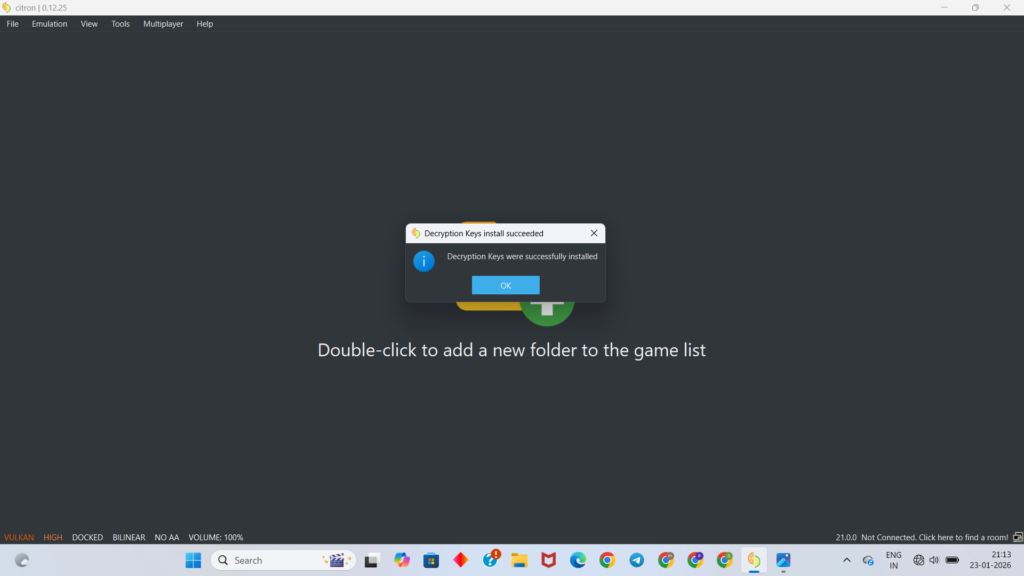
After selecting the prod.keys file, close Citron completely and open it again.
Restarting allows the emulator to detect the newly installed keys.
Step 7: Check if the error is fixed
After restarting Citron, the “Encryption keys are missing” message should no longer appear.
Direct Process
First, make sure you have valid Citron prod keys, usually dumped from your own Nintendo Switch console.
Next, locate the keys folder on your system:
- Windows:
C:\Users\YourUsername\AppData\Roaming\Citron\keys - Linux:
~/.local/share/citron/keys - macOS:
~/Library/Application Support/Citron/keys
If the keys folder does not exist, create it manually.
Copy the prod.keys file into the appropriate keys directory. Once done, close and restart the Citron emulator so it can detect the newly added keys.
After restarting, Citron should recognize the switch keys automatically. If installed correctly, you’ll be able to launch and play Nintendo Switch games smoothly on your PC.
Citron prod keys and firmware on Android
Android users usually install Citron through an APK file. The APK does not include prod.keys, title.keys, firmware, or games.
A normal Android setup uses this order:
- Install the Citron APK from a trusted project source.
- Open Citron, so it can create its folders.
- Add your legally obtained prod.keys file.
- Add your legally obtained title.keys file if your setup needs it.
- Install the matching firmware ZIP through Citron’s firmware option.
- Restart Citron.
- Add your game folder.
- Test a game backup you own.
Android folder names can change between builds. Some builds use an internal app data folder. Others let you choose a keys directory from inside the emulator.
Use Citron’s own “manage data,” “open folder,” or “install keys” option when available. That reduces path errors.
How to install firmware in Citron Emulator on Windows
Step 1: Open the firmware option
Launch Citron Emulator. From the top menu, click: Tools > Install Firmware
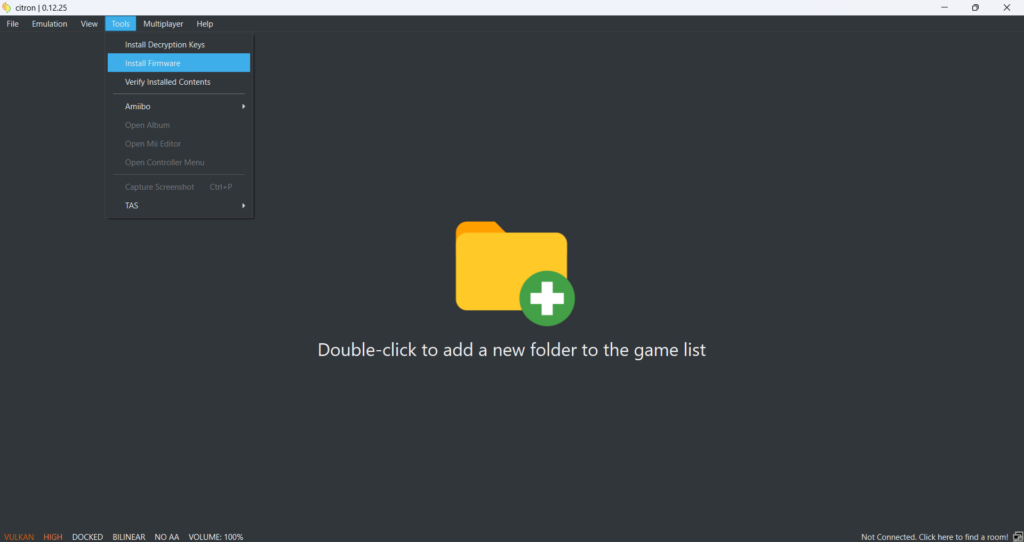
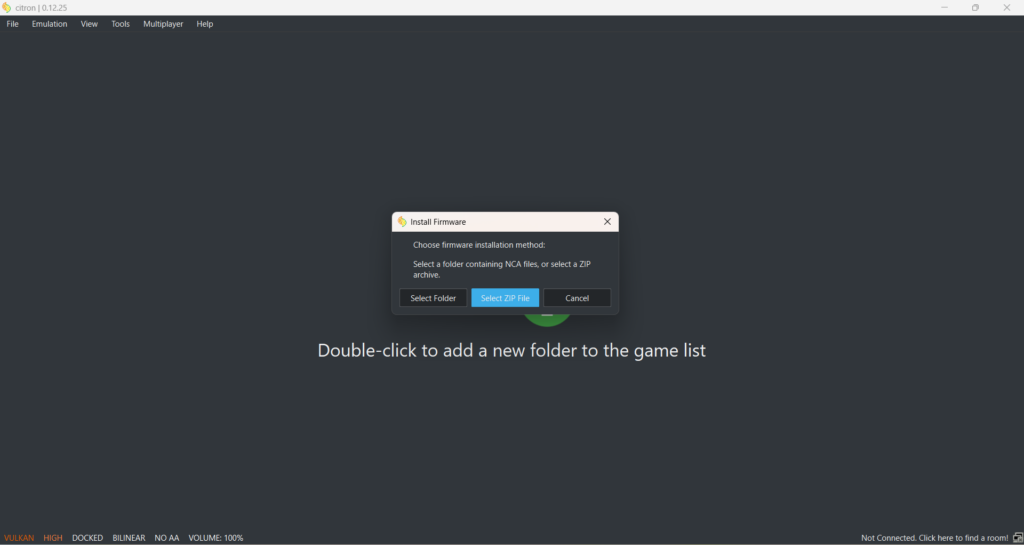
Step 2: Choose the firmware installation method
A small window will appear asking you to choose the firmware installation method. Click: Select ZIP File. Use this option if your firmware is saved as a compressed ZIP file.
Step 3: Select the firmware ZIP file
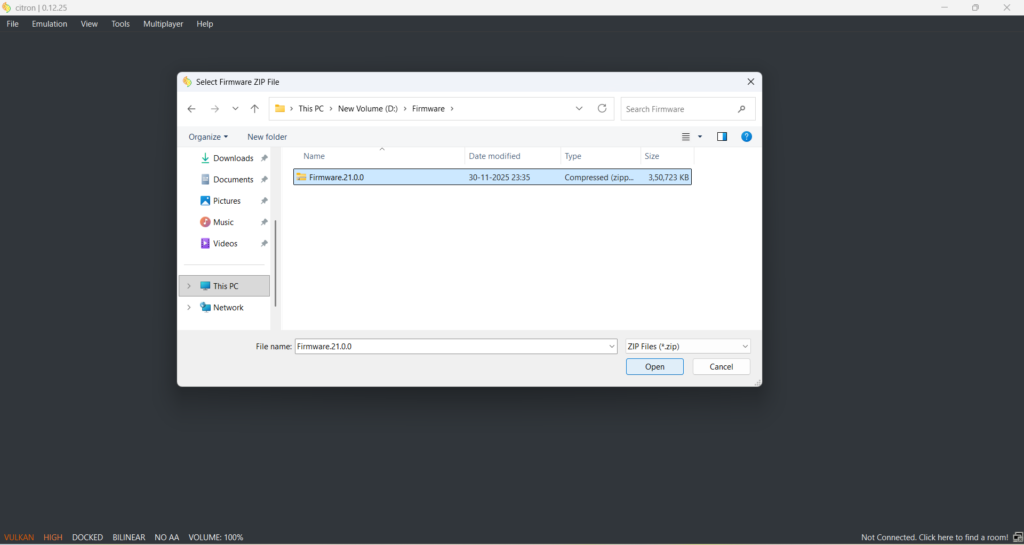
Browse to the folder where your firmware file is saved. Select the firmware ZIP file, then click: Open
Step 4: Wait for installation
Citron will start installing the firmware. Do not close the emulator during this process.
Step 5: Confirm successful installation
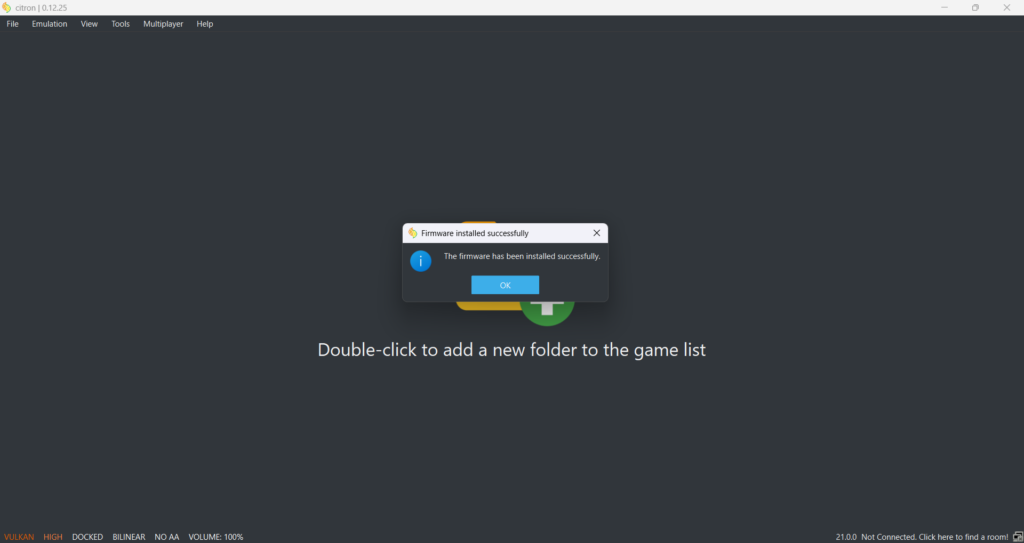
Once the process is complete, Citron will show a message saying: The firmware has been installed successfully. Click OK.
Step 6: Restart Citron
Close Citron Emulator and open it again. Your firmware is now installed, and the emulator should be ready to detect compatible games, updates, and system files.
Version compatibility: V22.5.0, V21.2.0, and older firmware
V22.5.0 is the target version for users who want the newest key and firmware range available for their Citron setup.
Older versions such as V21.2.0, V21.1.0, V20.5.0, and V20.0.0 still appear in searches because some users run older builds. Some games may behave differently across firmware versions, and some emulator builds may be more stable with a previous firmware range.
Use this simple rule:
| Situation | What to check |
| Newer game update fails | Use matching newer keys and firmware |
| Firmware install fails | Check keys first, then ZIP file condition |
| Older game crashes | Test another Citron build and check settings |
| DLC does not appear | Check title.keys and update/DLC version |
| Game does not show | Check prod.keys, file format, and game folder |
| Android black screen | Check GPU driver, Vulkan support, and firmware |
Avoid changing every file at once. Change one thing, restart Citron, then test again. That makes the problem easier to find.
Common Citron keys and firmware errors
Missing keys error
This means Citron cannot findprod.keys, or the file is in the wrong location. Open the Citron data folder from the emulator and check the keys folder.
Firmware missing error
This usually means the firmware has not been installed, or Citron failed to read the firmware ZIP. Add keys first. Then install the firmware again.
Black screen after launching a game
A black screen can come from missing keys, outdated firmware, weak hardware, bad drivers, or an unsupported game. Android users should check Vulkan support and GPU driver compatibility.
NSP or XCI file not loading
Check whether the file is damaged. Then check whether your prod.keys file matches the game and firmware range you are using.
DLC not working
DLC issues often point to title.keys, region mismatch, or update mismatch. Make sure the base game, update, and DLC belong together.
Firmware ZIP failed to install
The ZIP may be incomplete, mislabeled, or unreadable. Use a clean firmware dump from your own console. Then restart Citron before testing again.
Recommended system requirements
Citron’s performance depends heavily on hardware. Keys and firmware only fix decryption and system file issues. They do not make a weak device run demanding games smoothly.
PC requirements
| Component | Recommended |
| CPU | Modern Intel Core i5/i7 or AMD Ryzen 5/Ryzen 7 |
| RAM | 16 GB or more |
| GPU | Vulkan-compatible NVIDIA or AMD GPU |
| Storage | SSD or NVMe SSD |
| OS | Modern Windows or Linux build |
Android requirements
| Component | Recommended |
| Android version | Android 10 or newer, depending on build |
| CPU | 64-bit ARM processor |
| GPU | Vulkan 1.1 support |
| RAM | 8 GB minimum, 12 GB or 16 GB better |
| Storage | Enough free space for firmware, updates, DLC, and games |
| Driver support | Updated GPU driver where available |
High-end Snapdragon devices usually run Citron better than low-end phones. Some games need custom settings even on strong hardware.
Frequently Asked Questions – Citron Emulator Prod Keys and Firmware
What are Citron Prod Keys V22.5.0?
Citron Prod Keys V22.5.0 are production keys used by Citron to decrypt Nintendo Switch system files, game files, updates, and DLC from the same firmware range.
What are Citron title keys?
Citron title keys are game-level keys used for specific titles, updates, DLC, and digital content. They are usually stored in a file named title.keys.
Do I need both prod.keys and title.keys?
Most setups need prod.keys. Some games, updates, and DLC may also need title.keys. Keeping both files from the same console setup reduces errors.
Do I need firmware for Citron?
Yes, many games need firmware files to boot correctly. Missing firmware can cause failed launches, missing system file errors, or black screens.
Can I download Citron prod keys online?
Prod.keys and title.keys are protected system files. Use keys dumped from your own Nintendo Switch console.
Can I download Citron firmware online?
Firmware is also a Nintendo system file. Use firmware dumped from your own Nintendo Switch.
Why is Citron not detecting my keys?
The keys may be in the wrong folder, named incorrectly, or saved as a text file by mistake. Check that the file name is exactly prod.keys.
Why does Citron show a black screen?
Check keys, firmware, GPU drivers, Vulkan support, game file condition, and emulator build. Android users should also check whether their device has enough RAM.
Should I use V22.5.0 or an older version?
Use the version that matches your own Switch firmware dump and Citron build. V22.5.0 is useful for newer compatibility needs. Older setups may work better with earlier firmware ranges.
Conclusion
Citron Prod Keys and Title Keys V22.5.0 are part of a correct Citron setup, especially when you want to run newer game updates, DLC, and firmware-dependent titles. Use matching keys and firmware from your own Nintendo Switch, install them in the right folder, restart the emulator, and test one game before changing more settings.